Photos
Renaming an item
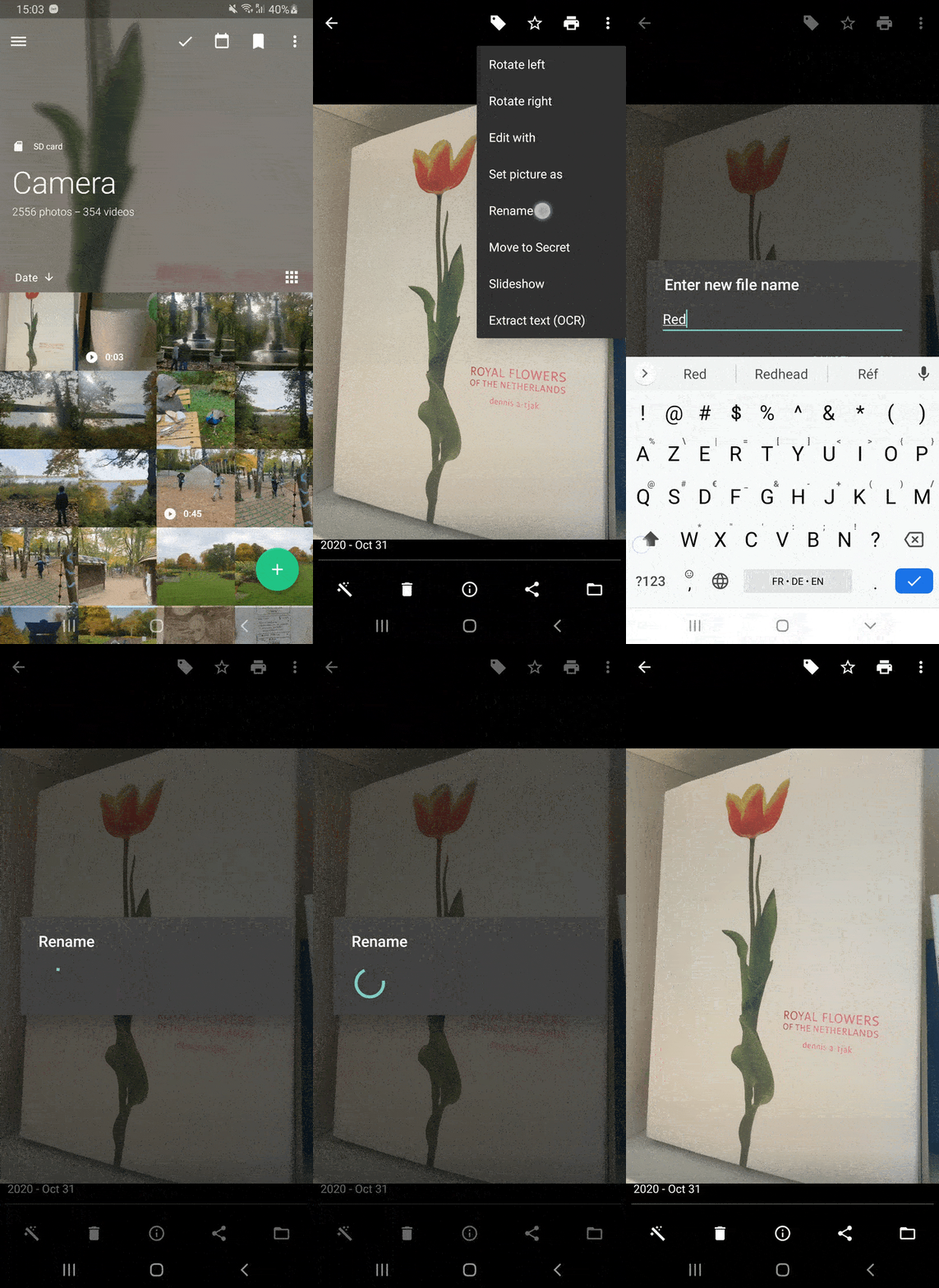
You can rename photos and videos on the phone and in the Secret Space. It isn't available on a cloud, on a network drive, or in Deleted items.
Rename one photo or video
From the album:
- Select the photo. See Selecting large set of items.
- Tap ⋮, then Rename.
- In Enter new file name, type the new name and tap OK. On the phone, you don't need to type the extension, such as
.jpg: Piktures keeps it.
From the viewer: open the photo, tap ⋮ at the top right, or swipe up, then tap the pencil next to the file name.
On the phone, Android may ask you to allow Piktures to change the file. Allow it.
Rename several at once
Renaming several photos at once needs Premium or Prime.
- Select the photos, tap ⋮, then Rename.
- Type a Prefix, and choose:
- With name (prefixname1.jpg) to keep each file's name after the prefix;
- Only prefix (prefix1.jpg) to replace the names.
- Set the Start index value, 1 by default, and tap OK.
Each file gets a number, starting from the start index and going up by one. Its extension is kept.