Manual
Albums
How folders become albums, how to display, bookmark, group, sort, rename, hide, or delete them, and what each album's menu, display, and cover offer.
The Albums tab
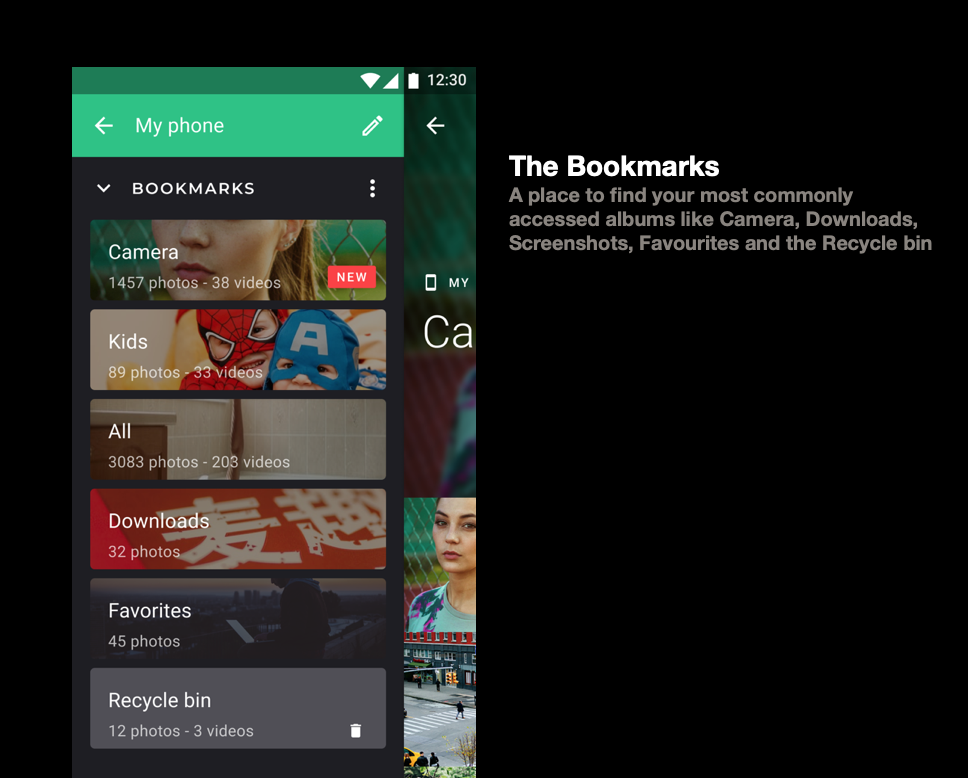
The album organization
How the Albums tab is organized, from the bookmarks at the top to the full list of albums.

Albums list display and folder view
Choose how the Albums tab looks, browse the phone's folders with Sub-folder view, and explore the whole folder tree with Explorer.
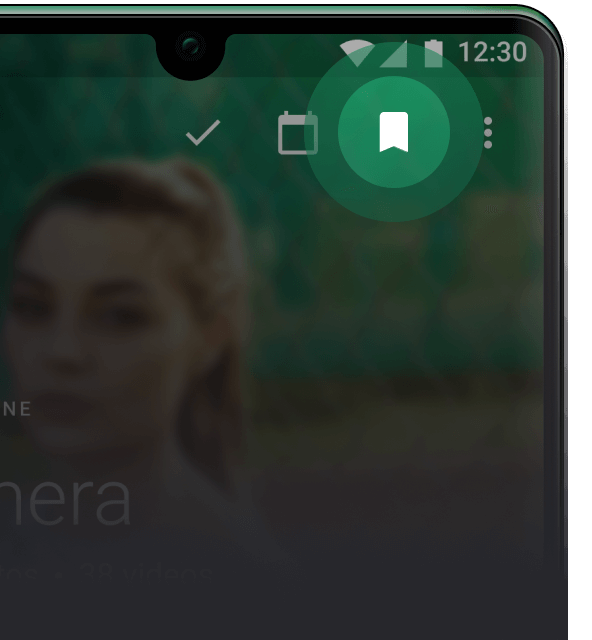
The bookmarks
Keep the albums you open most often at the top of the Albums tab.
Special albums
All, Favorites, QR Codes, Deleted items, Explorer, and the smart albums that sit next to your folders.
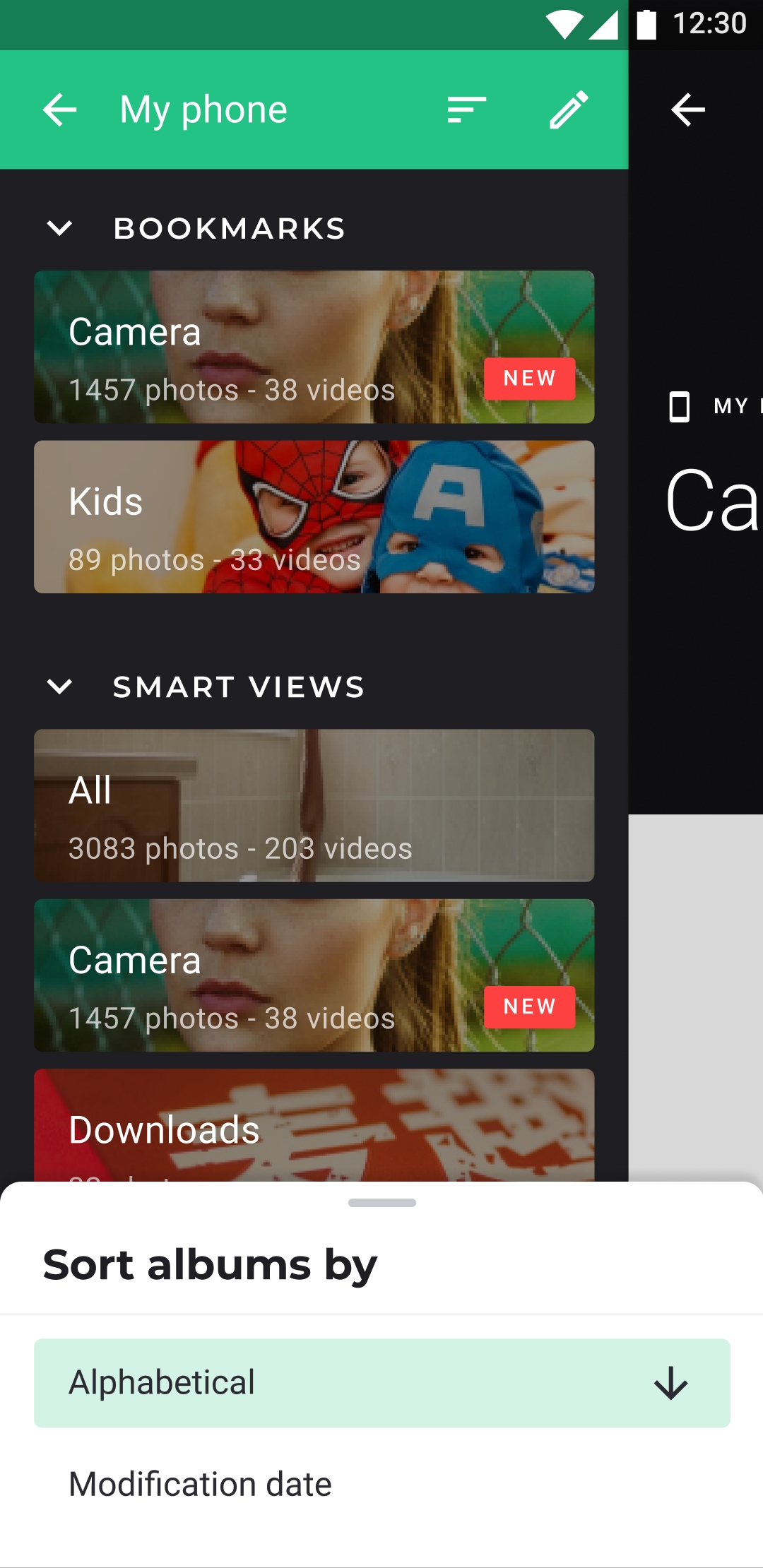
Sorting the list of albums
Each section of the Albums tab has its own sort order.
Organize albums
Creating a new album
Create an album from the Albums tab, or while you move or copy photos.
Renaming an album
Renaming an album renames its folder on the phone. It works for albums in the Pictures folder.
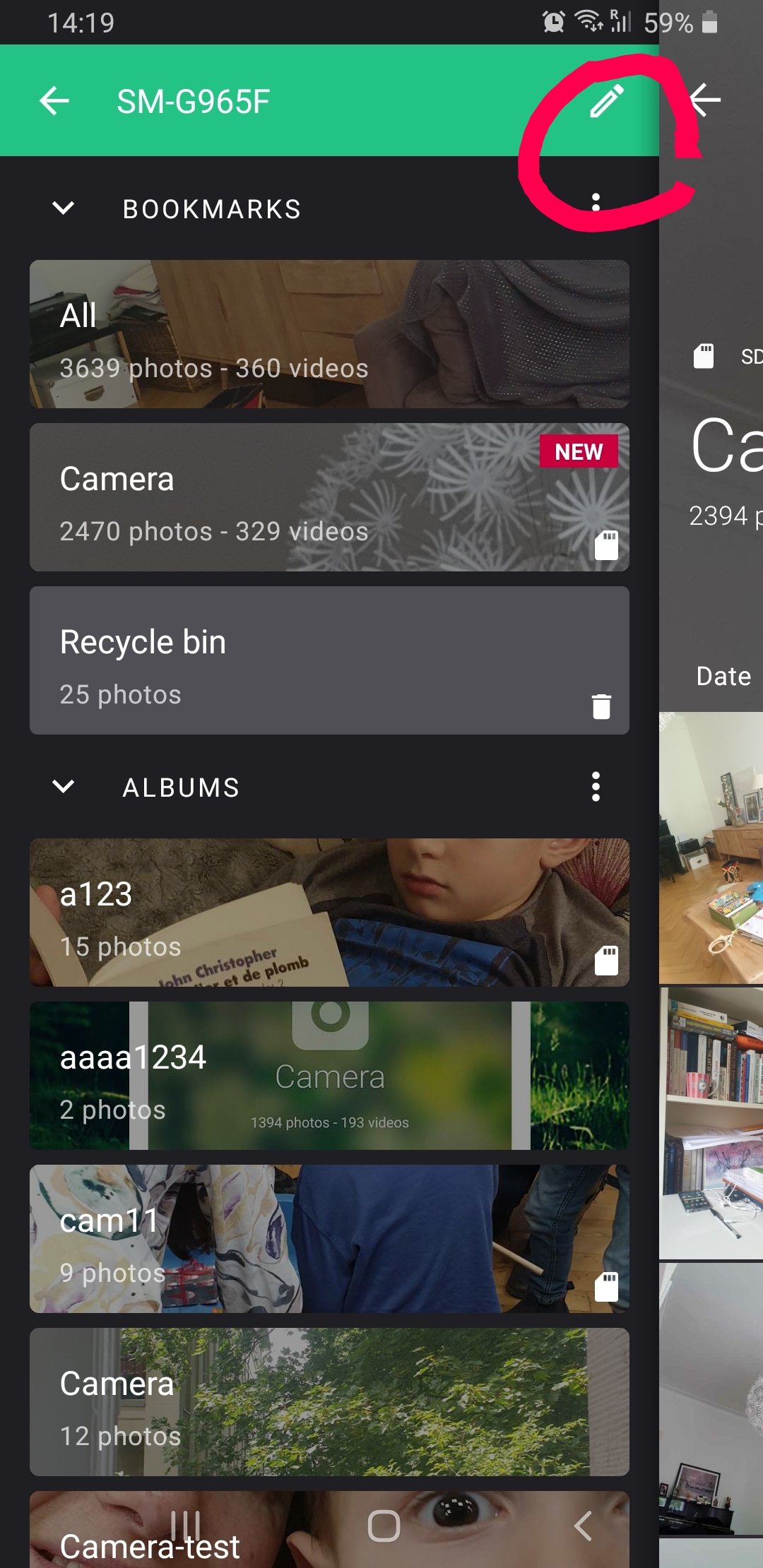
Album groups
Gather the phone's albums into named groups in the Albums tab, open them, and take albums out again.
Hide and unhide albums
Hide an album from the Albums tab, or exclude a folder and all its sub-folders.
Delete an entire album
Delete an album and send all its photos and videos to Deleted items.
Inside an album
Album settings
Everything in an album's ⋮ menu, from shortcuts and storage analytics to display, sorting, backup, and the album's own actions.
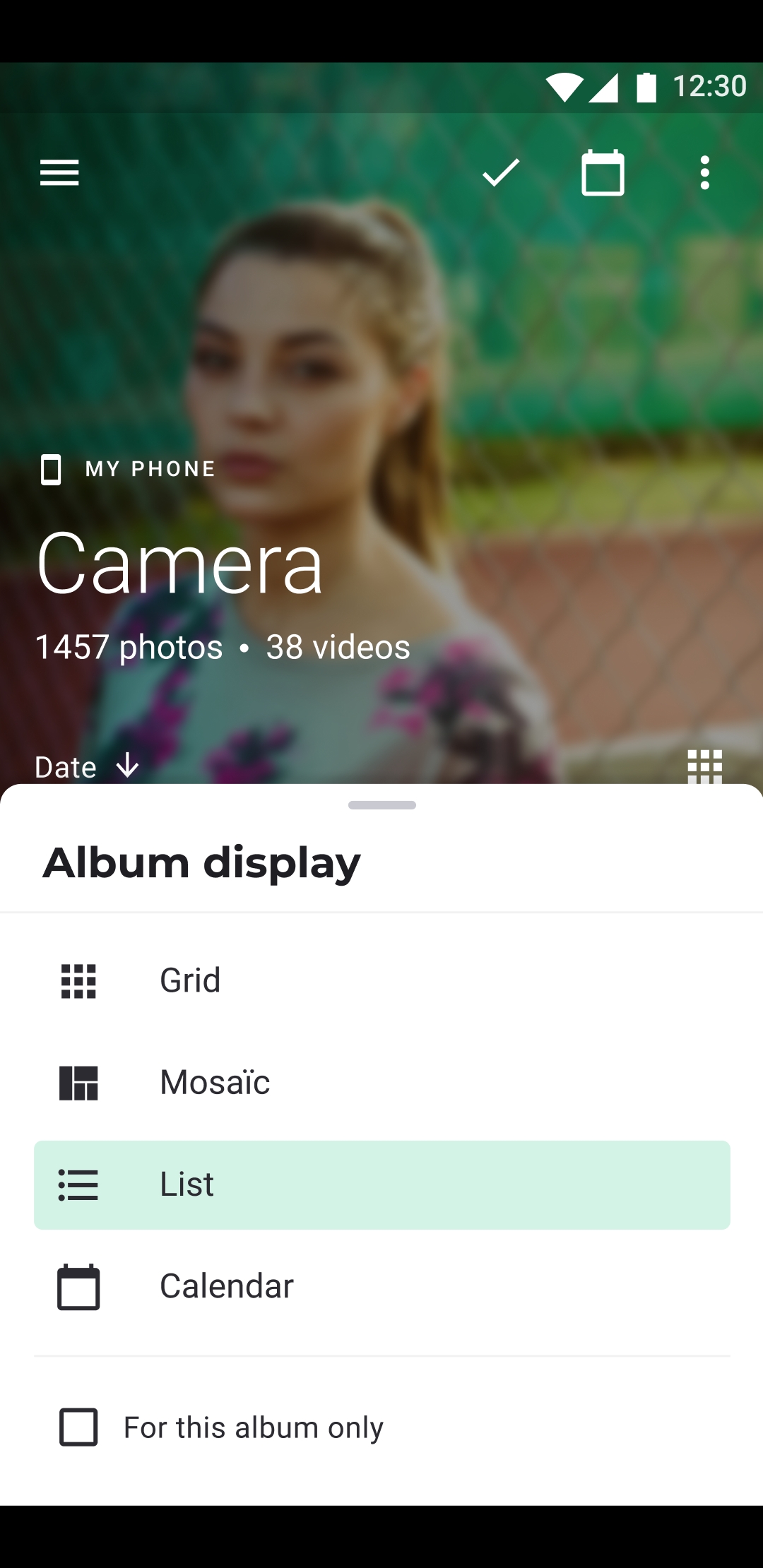
Choosing the album display
Show an album as a grid, a mosaic, or a list, with or without date separators.
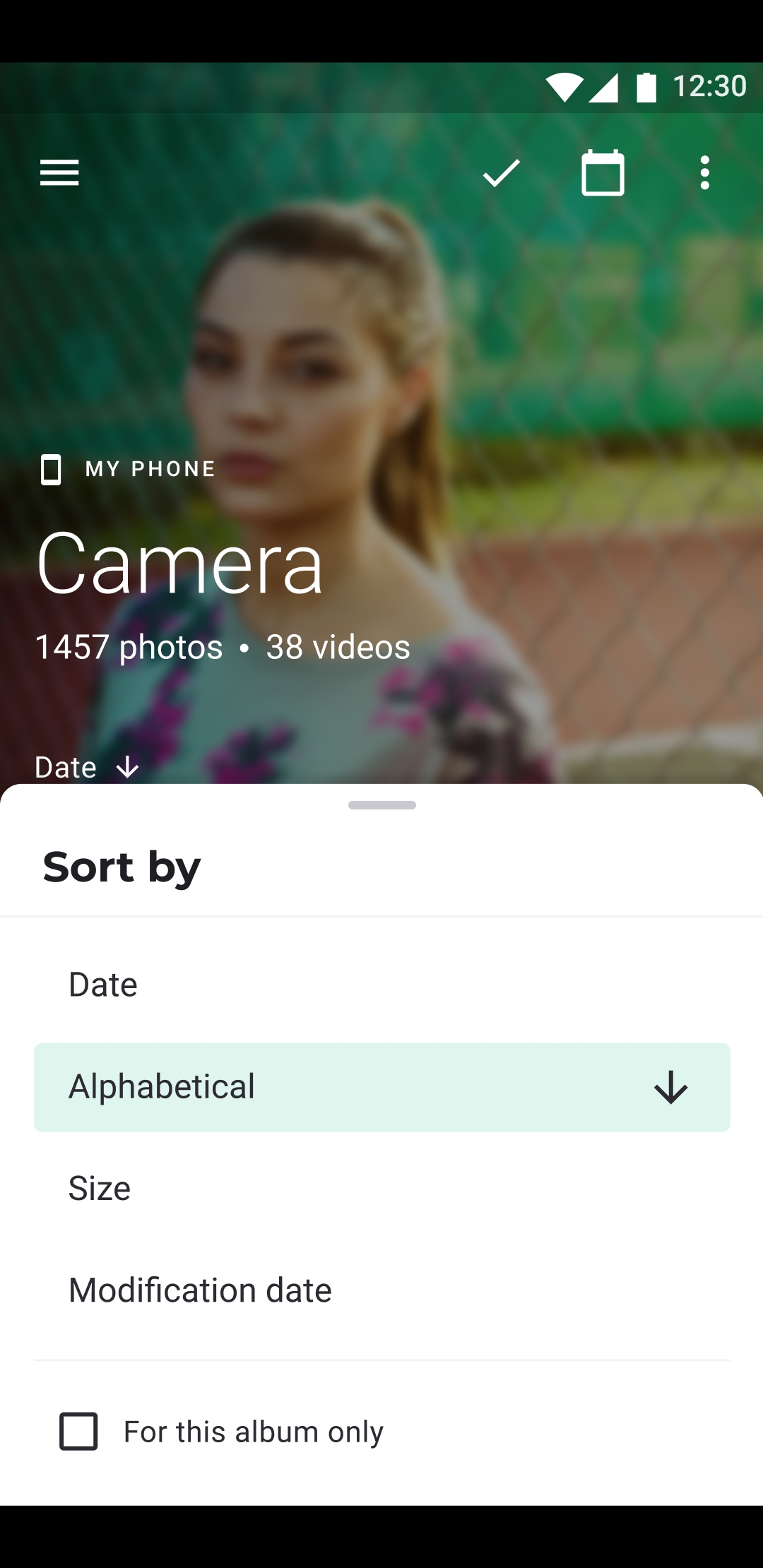
Sorting items in an album
Sort the photos and videos of an album by name, date, or size.
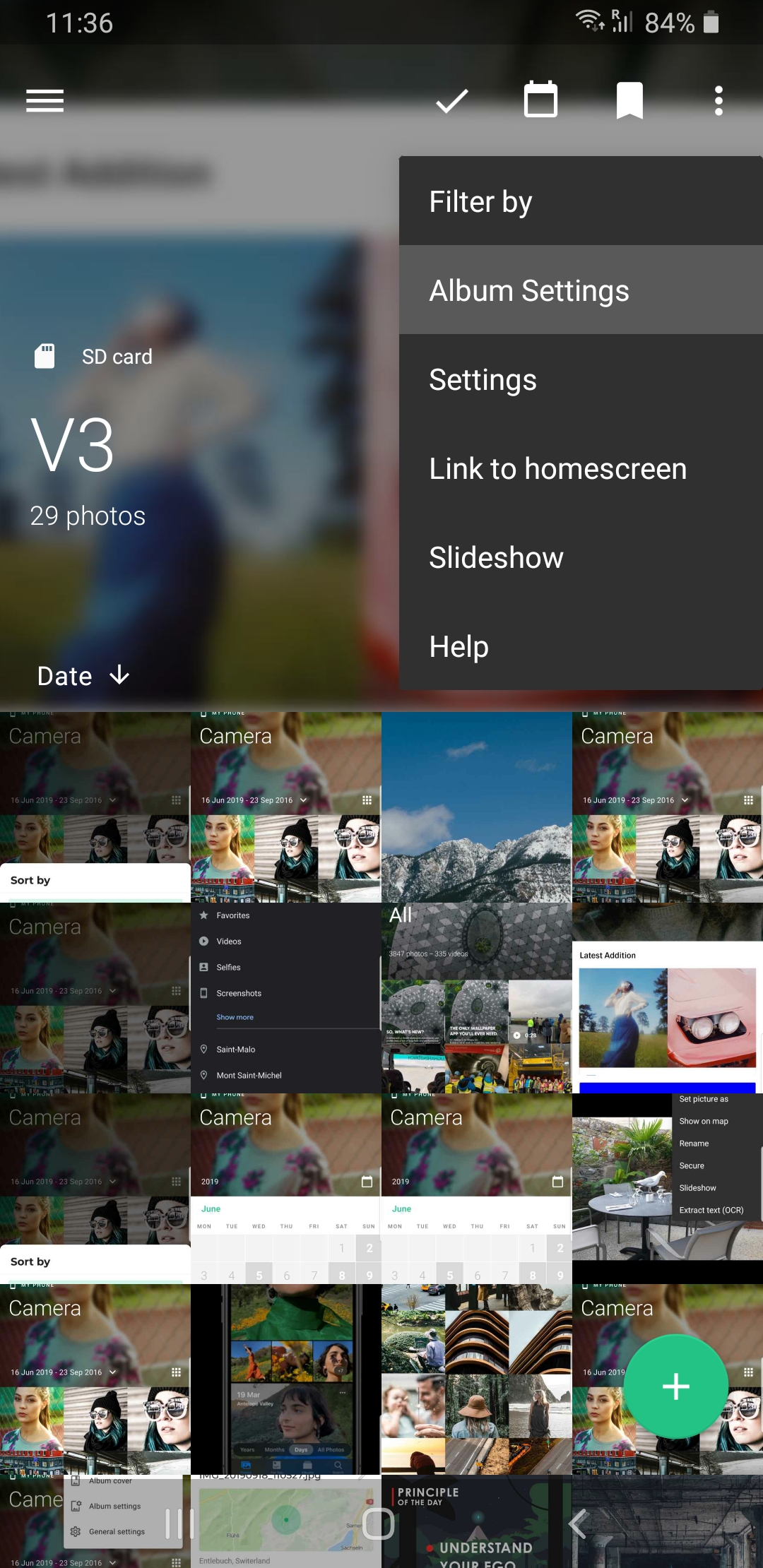
Changing the album cover
Choose the photo shown at the top of an album, or let Piktures change it.
Search the manual
Search page titles and guides