Albums
Choosing the album display
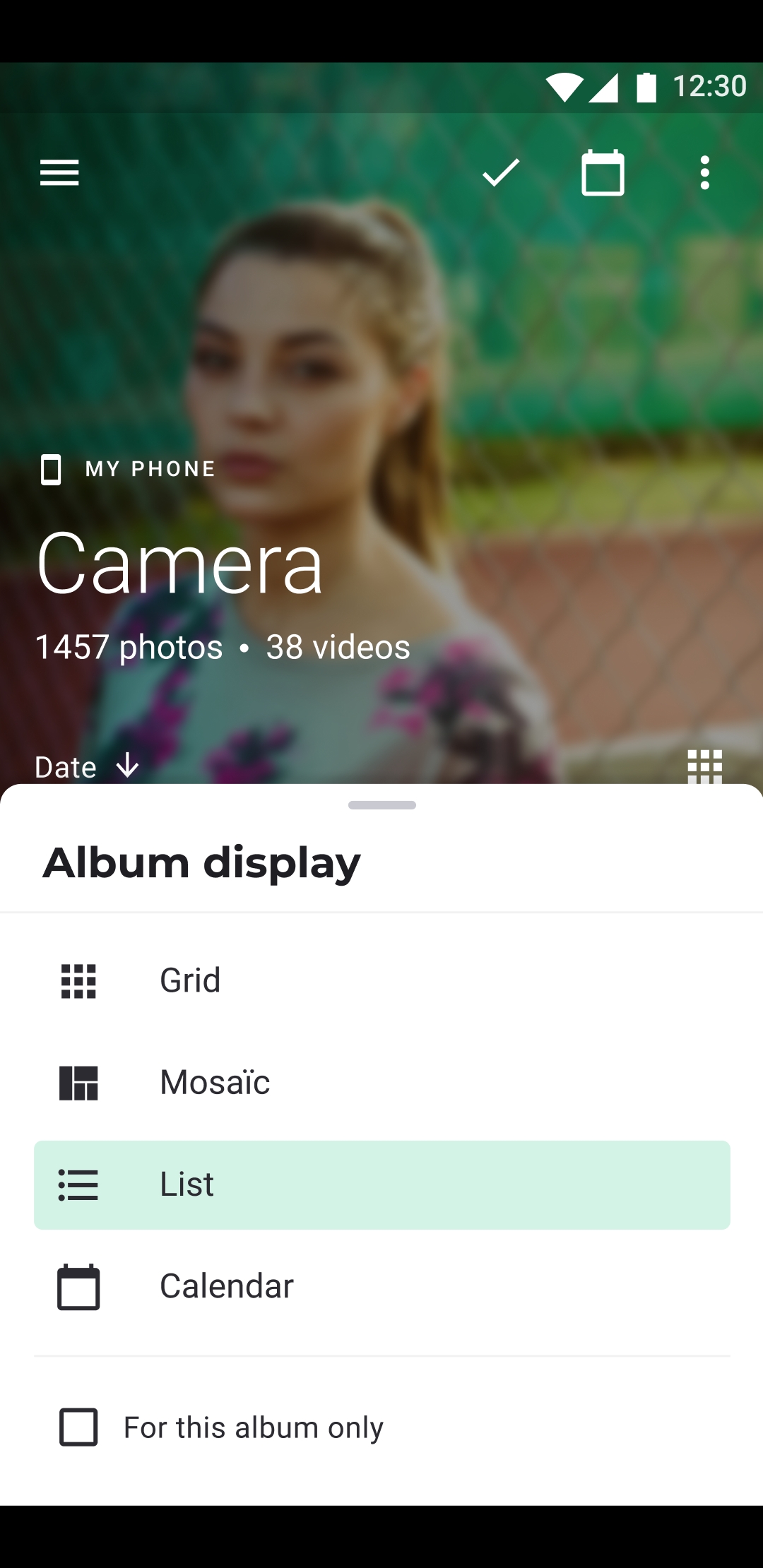
- Open the album in the Photos tab.
- Tap ⋮ at the top right. On a phone, you can also tap the Photos tab again.
- Tap the row that shows the current display: Grid, Mosaic, or List.
- In Album display, choose a display and tap Save.
The displays
- Grid shows 3 to 6 columns: use − and + to change the number.
- Mosaic shows 2 to 6 columns. It isn't offered for albums on Dropbox, on a network drive, or on a WebDAV-based access (Webdav, Nextcloud, Koofr, Yandex Disk).
- List shows one item per line.
When you turn the phone sideways, the number of columns doubles.
Date separator
Check Date separator to add a header between groups of photos. In a grid, a header covers a day with up to 3 columns, a month with 4 or 5, and a year with 6. When the album is sorted Alphabetical, the headers are letters; sorted by Size, they are size ranges.
Tap a header to select all the photos under it: see Selecting large set of items.
This album, or all albums
- With For this album only checked, the display applies to this album.
- Unchecked, it becomes the default for every album that doesn't have a display of its own.
The default display is a Grid of 3 columns, with date separators.