Albums
Changing the album cover
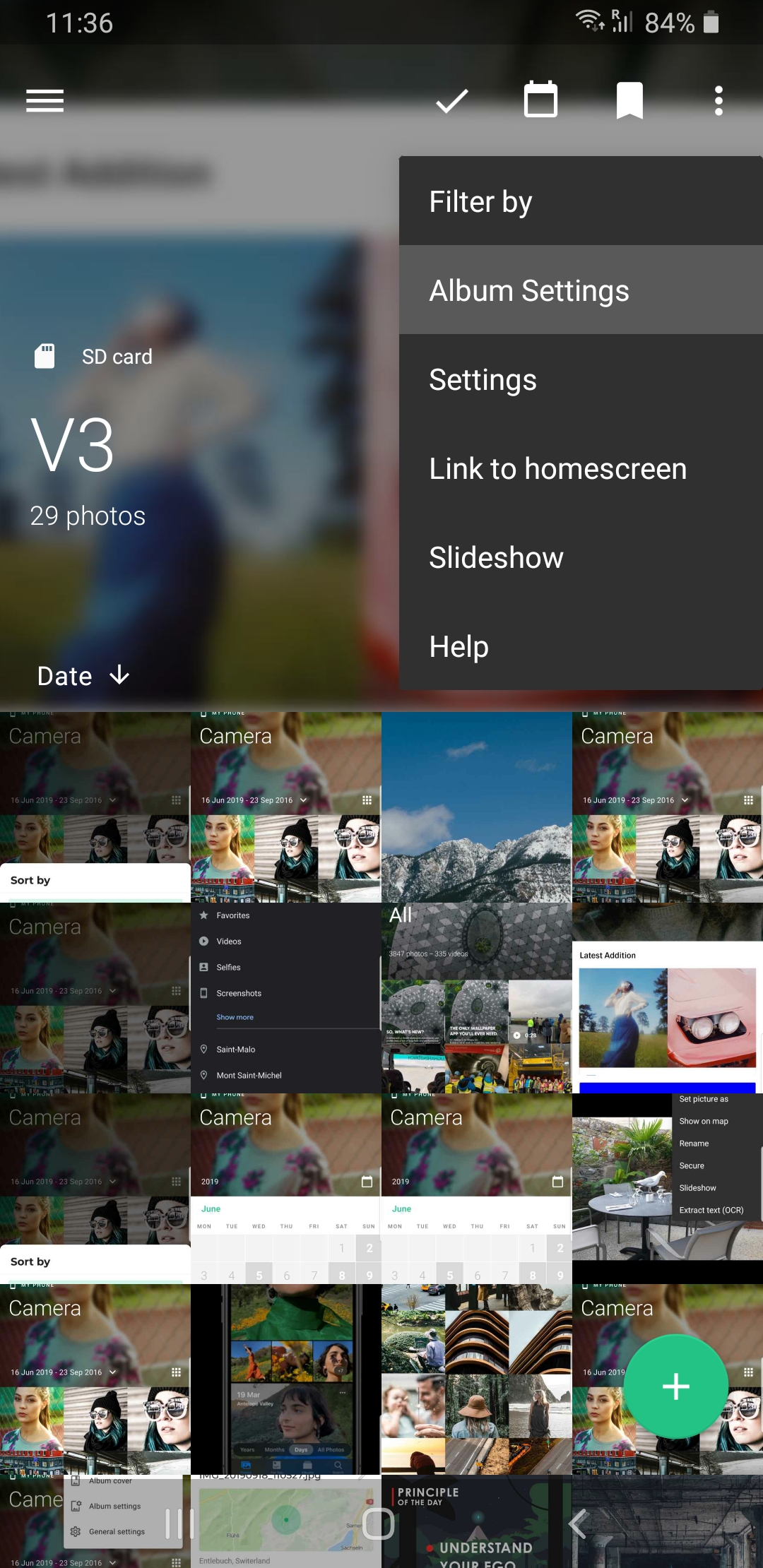
The cover is the photo shown at the top of an album.
- Open the album in the Photos tab.
- Tap ⋮ at the top right, then Change cover.
- In Choose cover, pick one of the four options and tap Confirm.
The four options
- Last one: Piktures chooses the cover itself. This is the default.
- Random: Piktures picks a new photo each time the delay has passed and you open the album.
- DELAY: 15mn, 2h (the default), 12h, or 24h.
- Photo only leaves out the videos. It's on by default.
- Favorite only picks among your favorites.
- Manual: pick a photo of the album, then frame it. The Blur slider blurs the cover. Tap ✓ to keep it.
- Disable: no cover for this album.
When the cover is shown
The cover is shown for albums on the phone and in the Secret Space, when the phone is upright, and when no search filter is active. Deleted items, QR Codes, and the folders of Explorer have no cover.
To remove the cover from every album, turn off More → Personalisation → PERSONALIZATION → Cover.
Change cover isn't offered when the album is empty or when Cover is off.