Hide and unhide albums
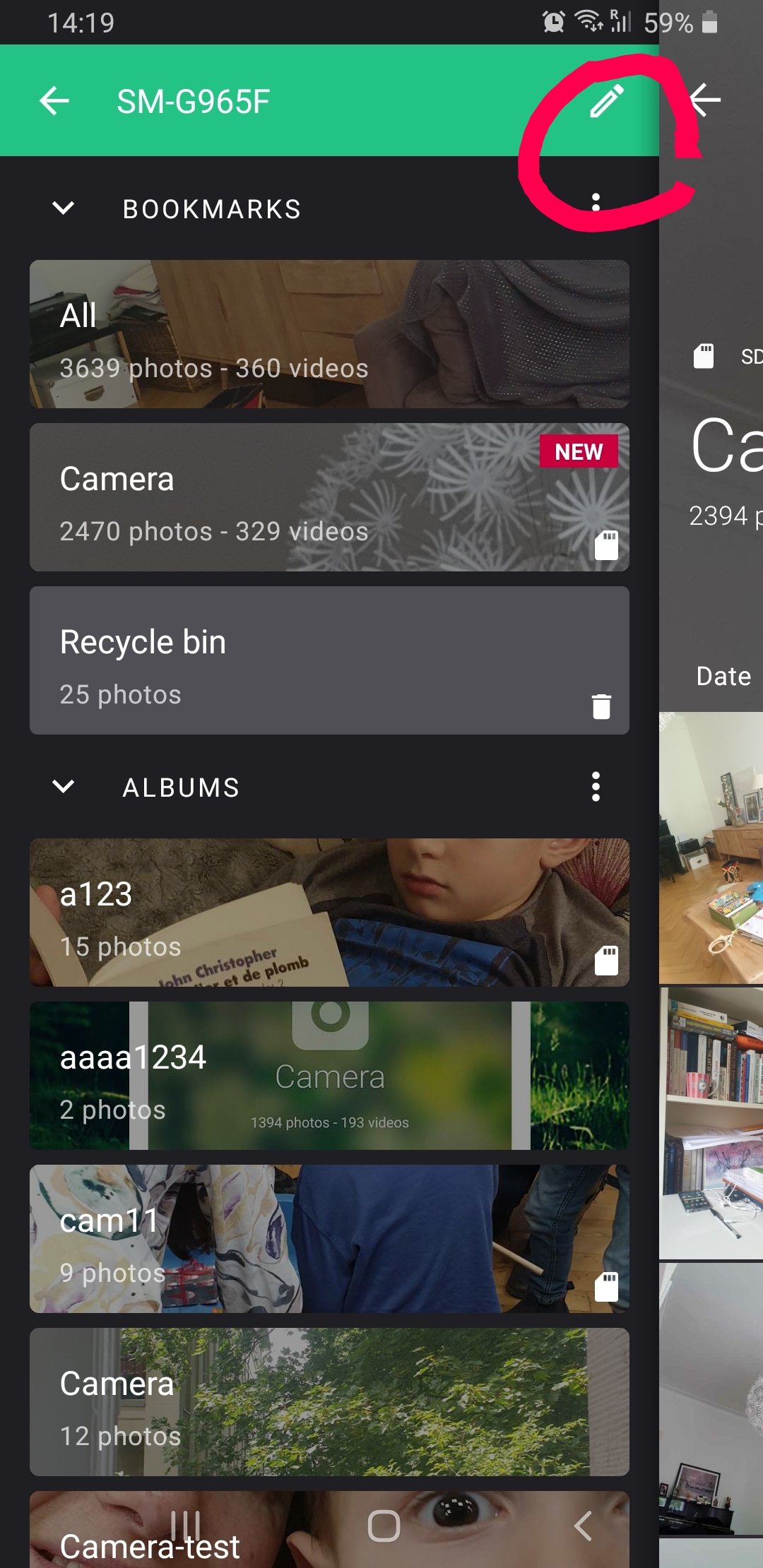
Hiding an album removes it from the Albums tab and removes its photos from All. It doesn't touch the files: the photos stay in the same folder, and other apps, such as a file manager or another gallery, still show them.
Hide an album
- In the Albums tab, tap ⋮ at the top right, then Manage albums visibility and bookmarks.
- Tap the crossed-out eye of each album you want to hide.
- Tap ✕ when you're done.
A bookmarked album has no eye button: remove its bookmark first. See The bookmarks.
Unhide an album
Open Manage albums visibility and bookmarks again. Hidden albums are shown dimmed: tap their eye to show them again.
Exclude a folder and all its sub-folders
Some apps fill the phone with images you don't want to see, such as the album covers of a music player. Excluding their folder hides it, with all its sub-folders, from the Albums tab and from All.
- In the Albums tab, tap ⋮ at the top right, then Set excluded folders. The same screen is in More → Settings → FOLDERS → Manage excluded folders.
- Tap Select a folder, or + if you have already excluded some.
- Check the folders to exclude, and tap Save.
To bring a folder back, tap it in the list of excluded folders. It's removed from the list right away.
What about .nomedia?
Piktures doesn't create .nomedia files to hide folders. A .nomedia file is meant for an app to hide its own files, such as its cache, not to hide other apps' folders.
Hiding is not protecting
Hiding only affects what Piktures shows. To move photos behind a PIN code, use Move to Secret: see The Secret Space.